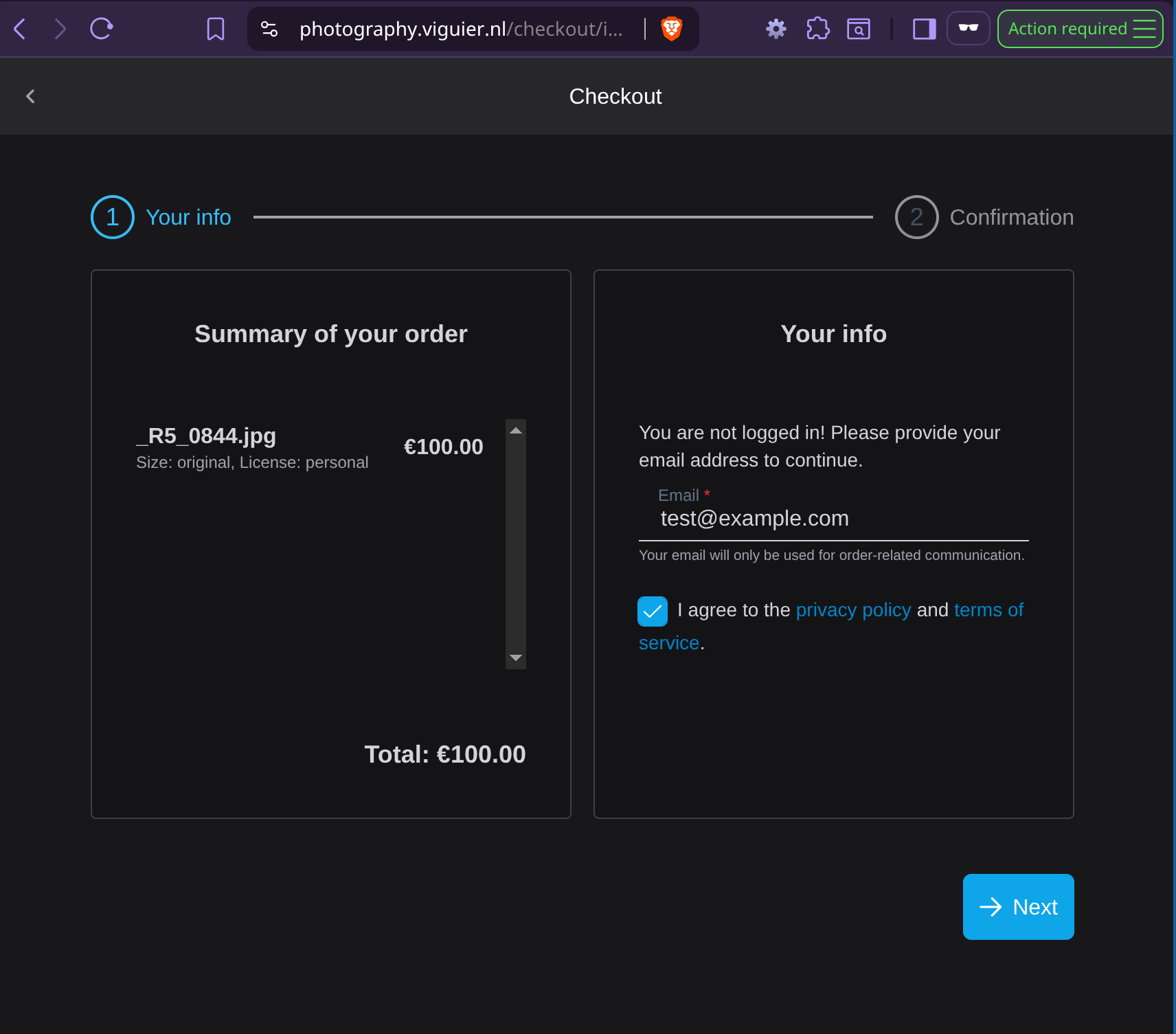
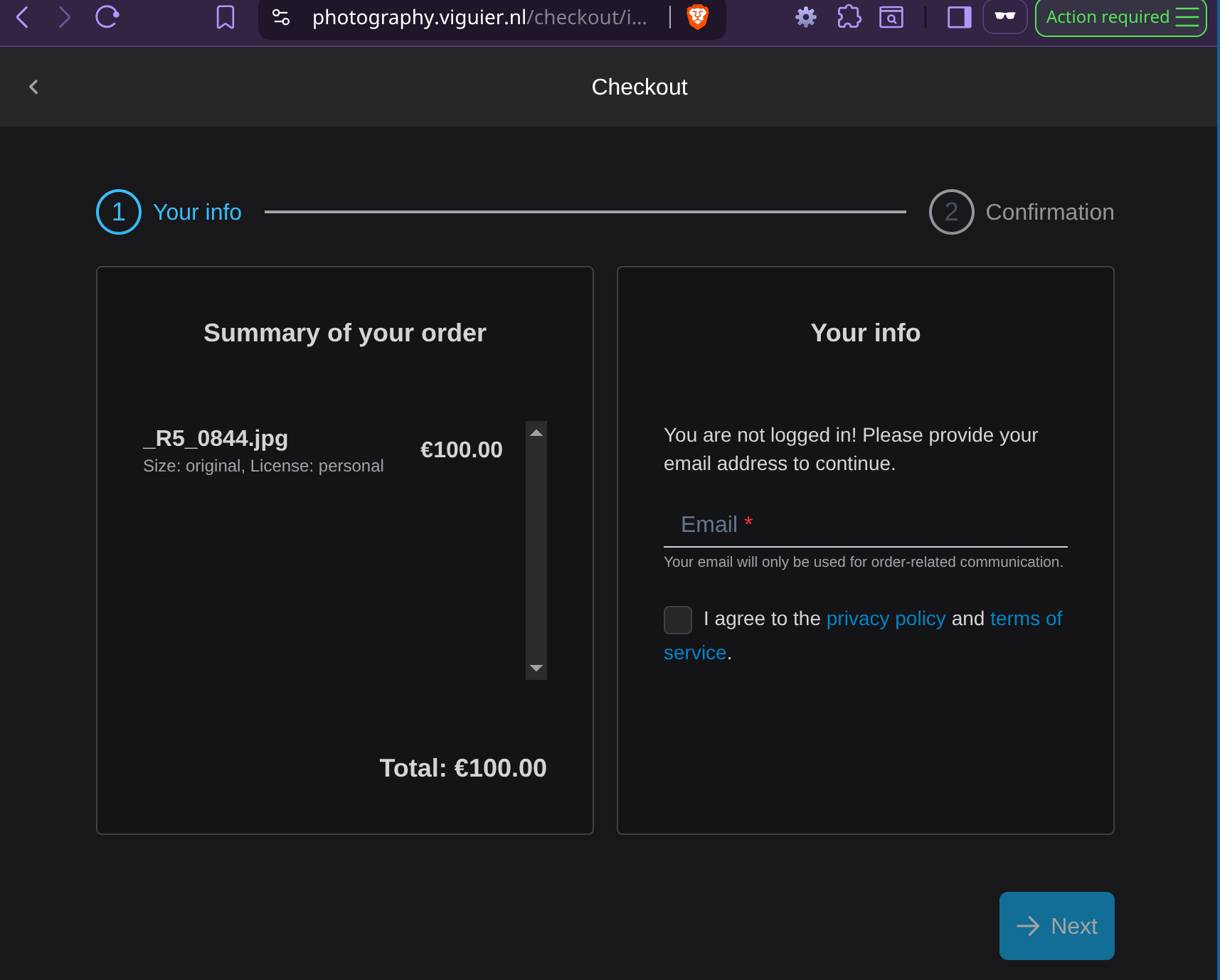
Order Management
Viewing Orders
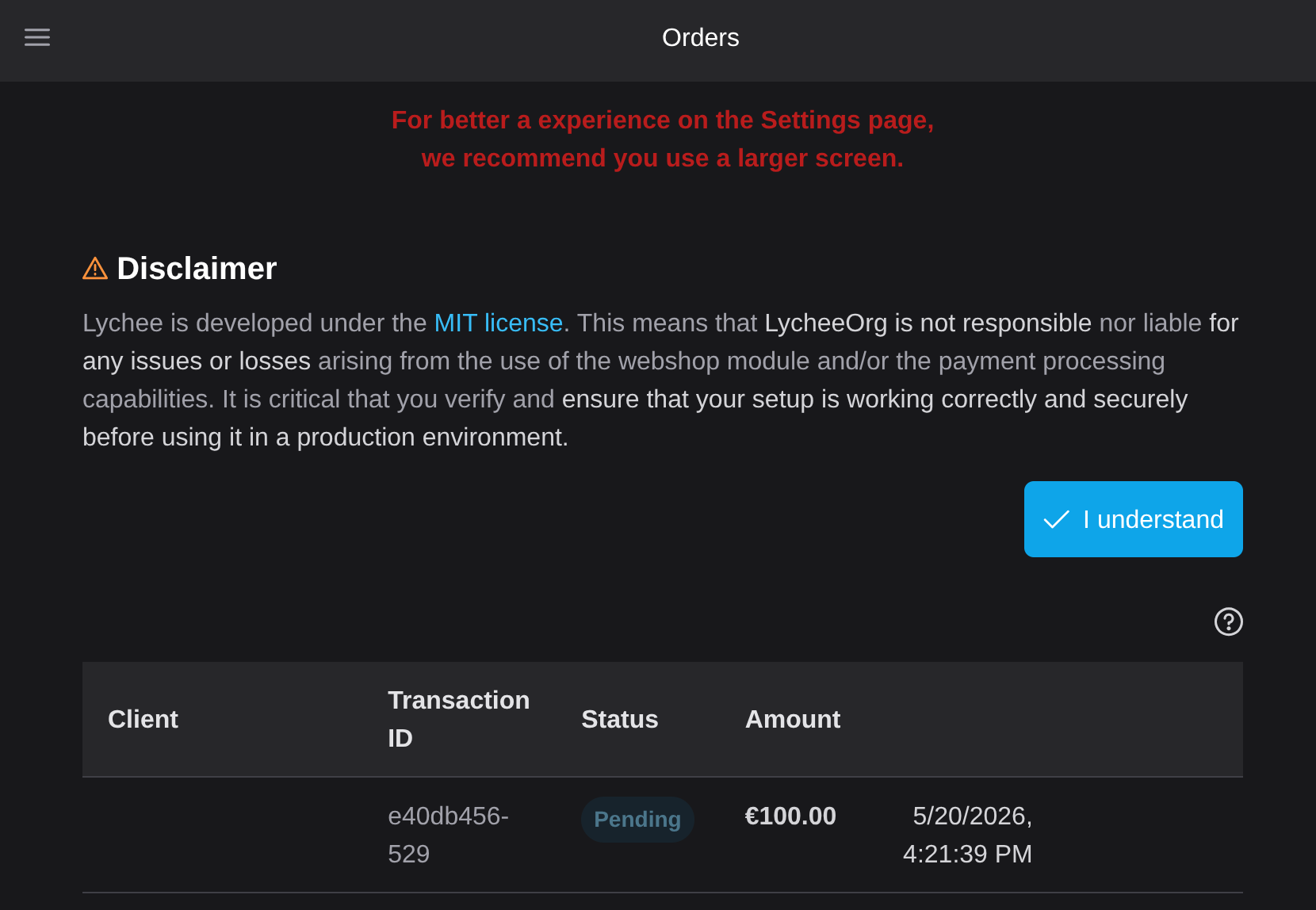
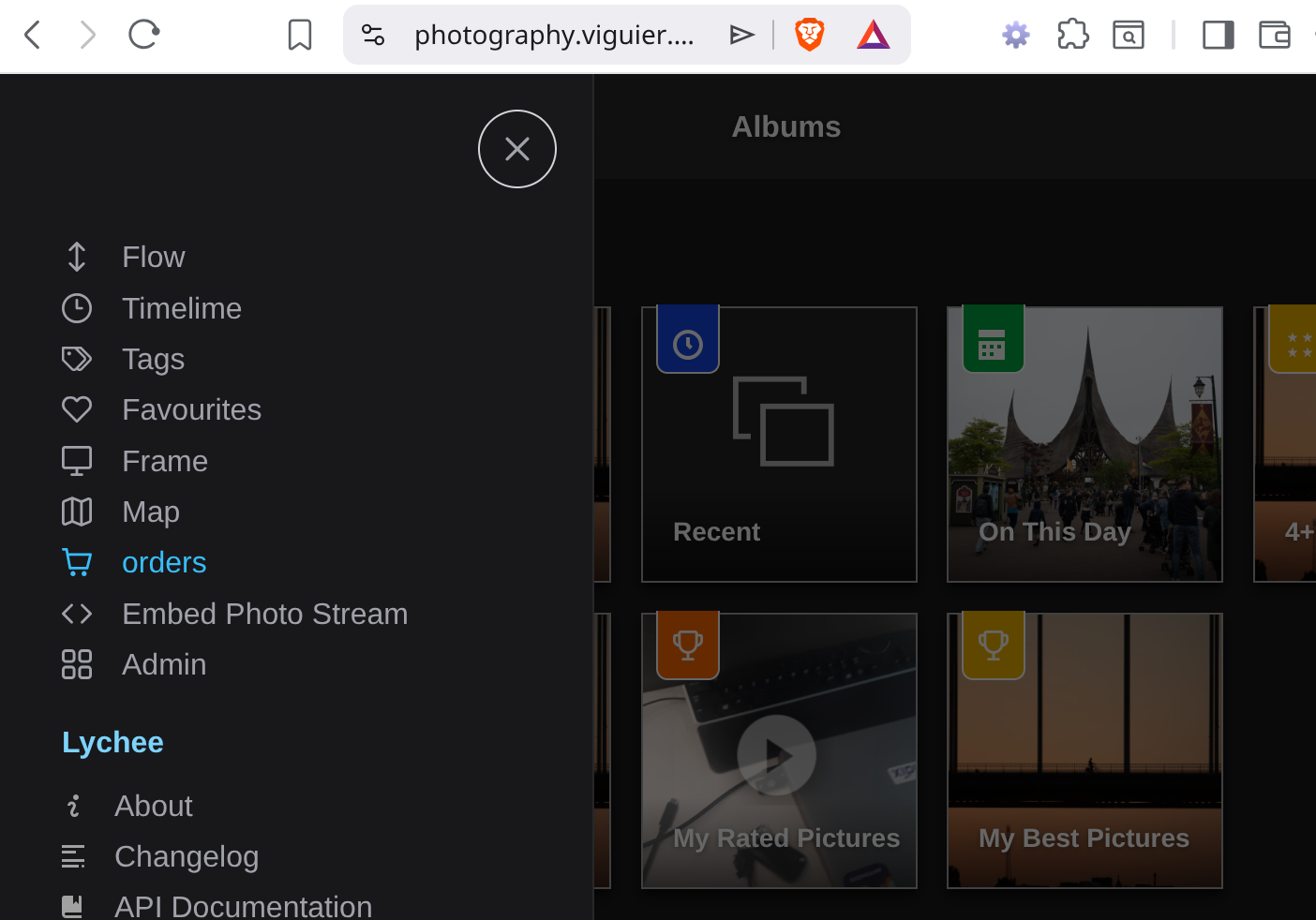
Section titled “Viewing Orders”Access the orders page from the left menu in Lychee. The orders list shows:
- Pending orders — awaiting payment or fulfillment
- Completed orders — paid and fulfilled
Each order displays the customer details, selected photos with their sizes, and the payment status.
Fulfilling Orders
Section titled “Fulfilling Orders”Auto-fulfillment
Section titled “Auto-fulfillment”When auto-fulfillment is enabled in the webshop settings and the customer ordered the original size, Lychee automatically:
- Generates a download URL pointing to the original file.
- Makes the link available to the customer.
No manual action is needed for these orders.
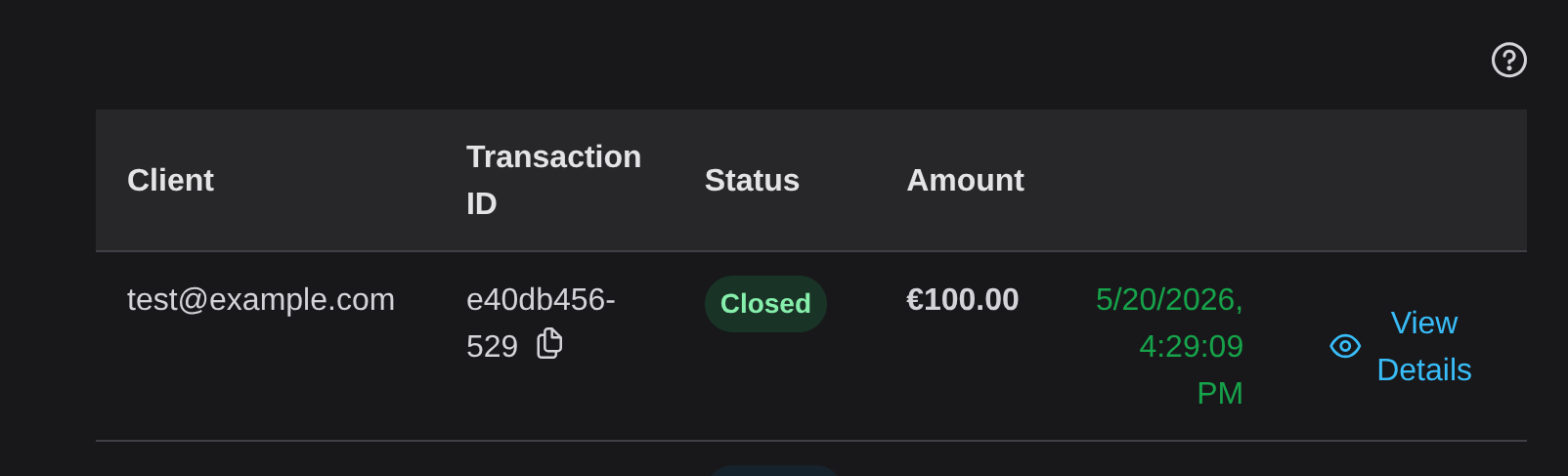
Manual Fulfillment
Section titled “Manual Fulfillment”For custom sizes, prints, or when auto-fulfillment is disabled:
- Open the order from the orders list.
- Click the download link field for the order line.
- Enter the URL where the customer can download the file (e.g. a link to an external service, a processed file, etc.).
- The customer will see the download link on their order page.
Marking Orders as Paid
Section titled “Marking Orders as Paid”For offline payments or when you need to manually confirm payment:
- Open the order.
- Click Mark as paid.
- If auto-fulfillment is enabled, download links are generated automatically.
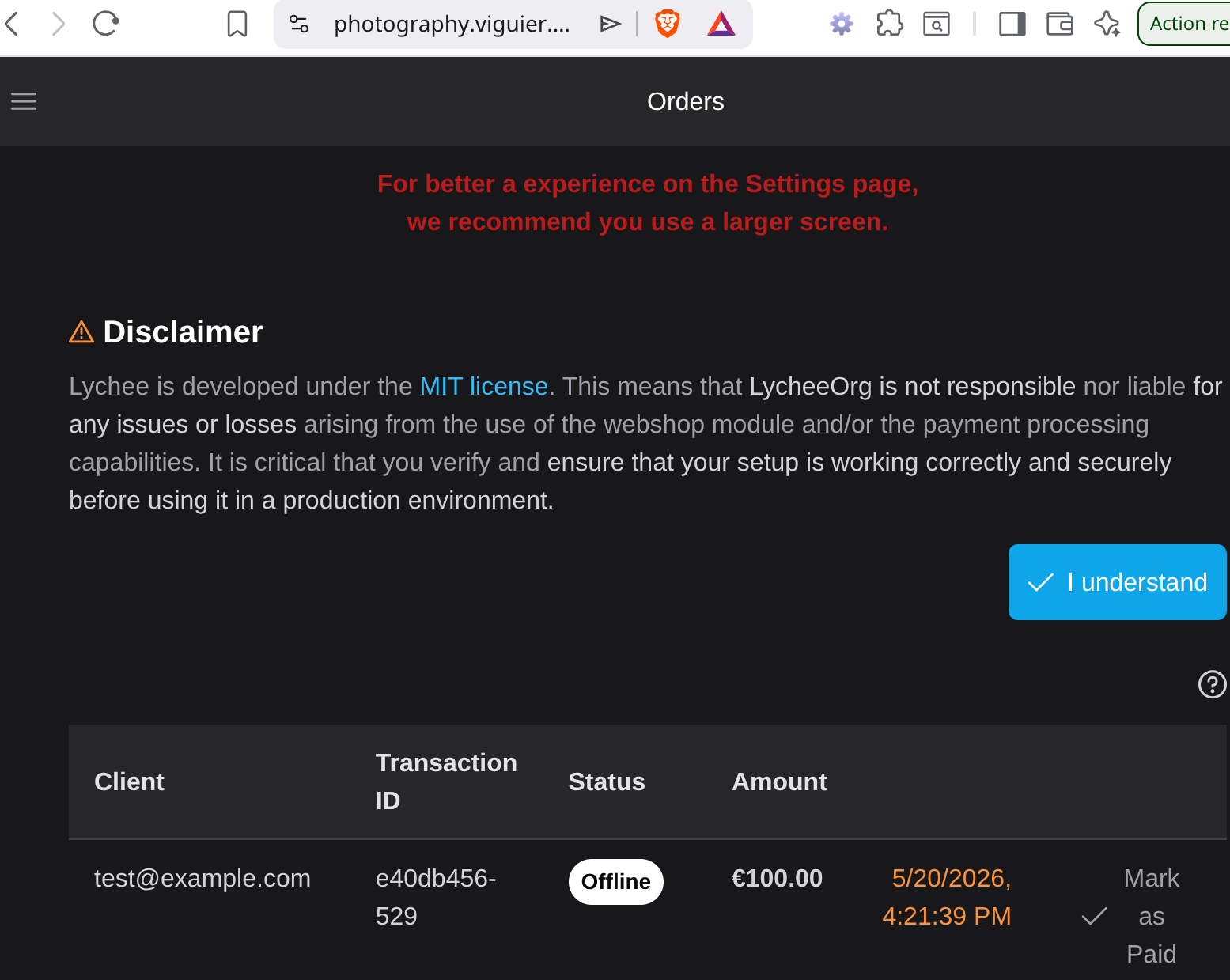
For PayPal and Mollie payments, the payment status is updated automatically via the payment gateway.
Customer Download Experience
Section titled “Customer Download Experience”Once an order is fulfilled:
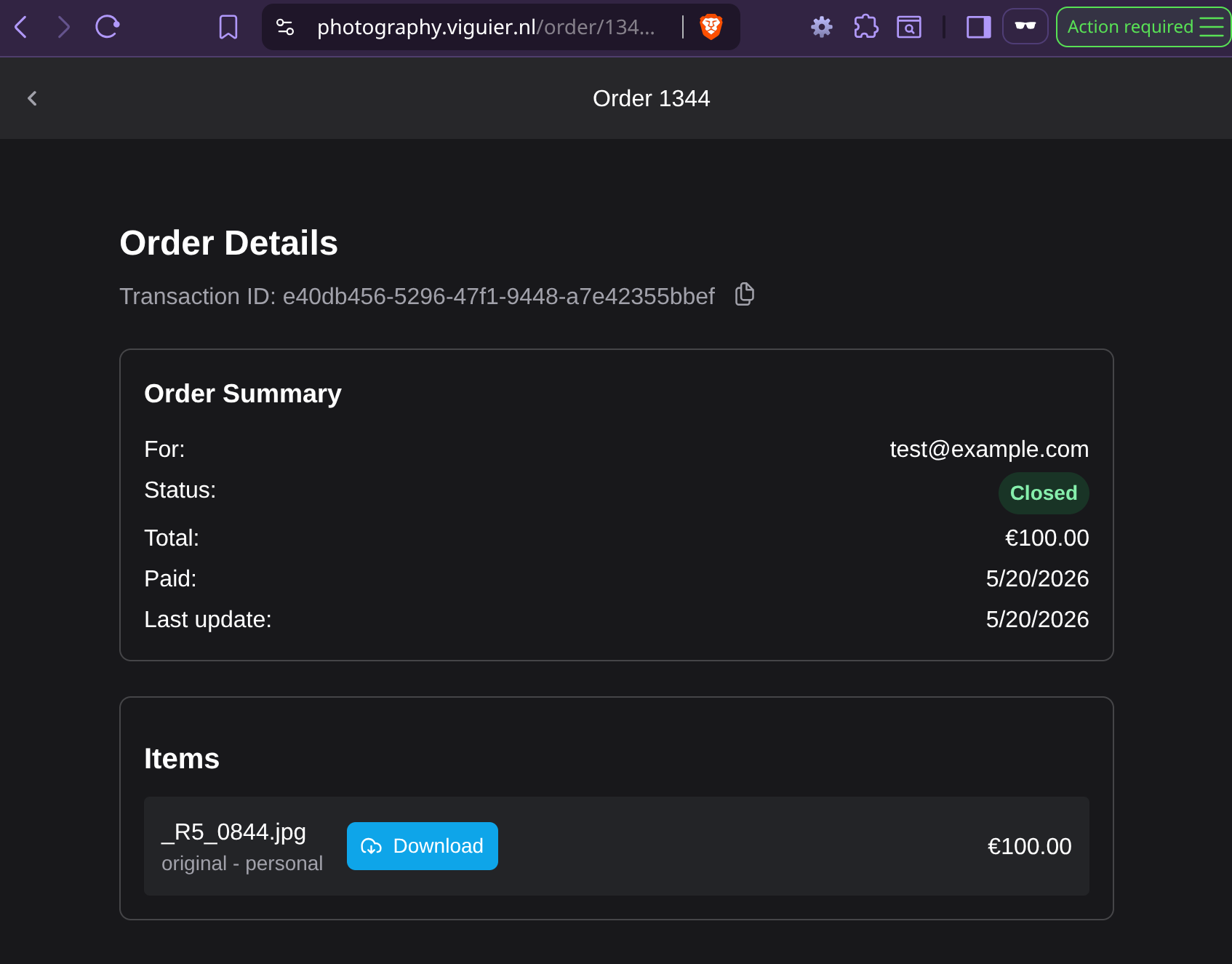
- The customer receives a shareable download link.
- Clicking the link opens a download page where they can retrieve their purchased photos.
- Admins can copy the download link from the order details to share it directly.