Webshop Configuration
Enabling the Webshop
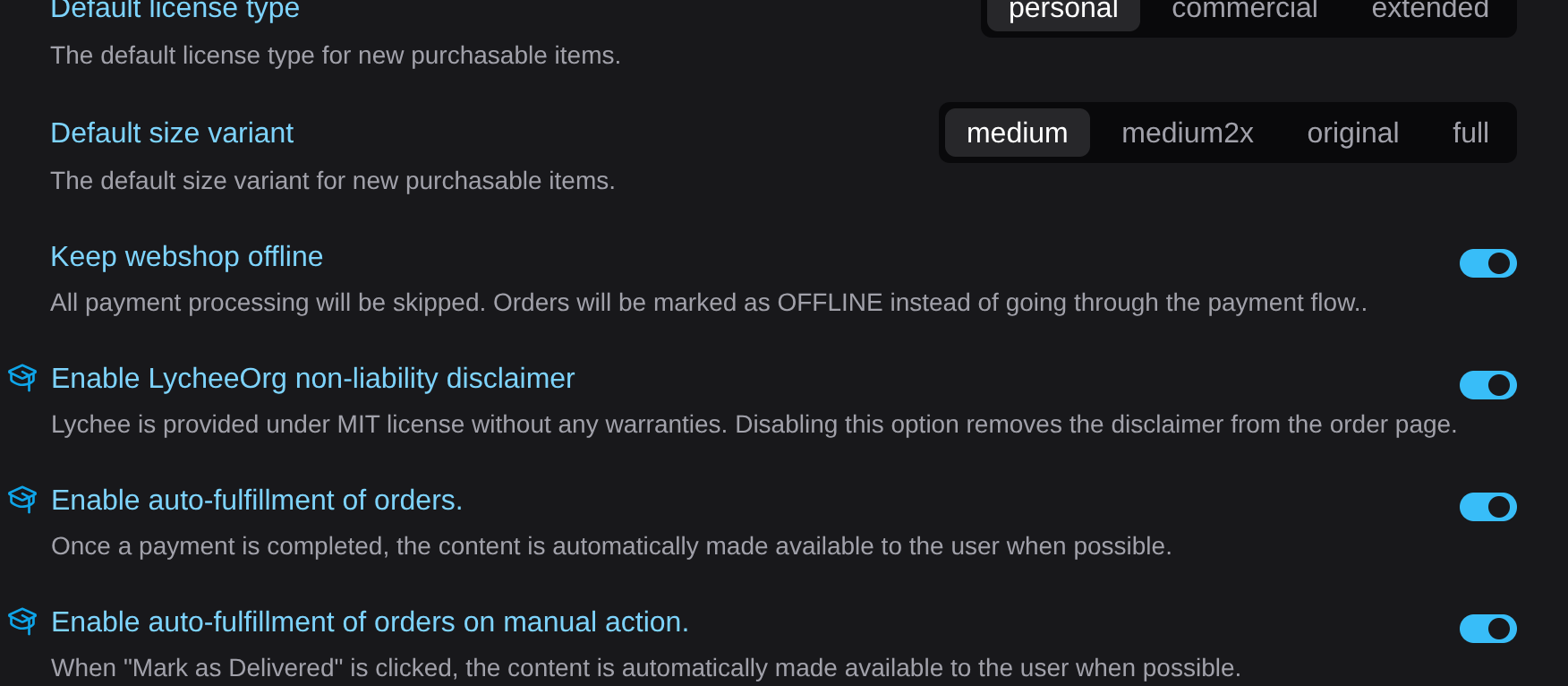
Section titled “Enabling the Webshop”- Open the Settings panel in Lychee.
- Locate the Webshop section and enable it globally.
- Optionally enable auto-fulfillment — when turned on, orders for the original size are automatically fulfilled with a download link once the payment is confirmed.
Setting Up Products
Section titled “Setting Up Products”Products (sizes and prices) are configured per album, not globally.
- Navigate to the album you want to sell photos from.
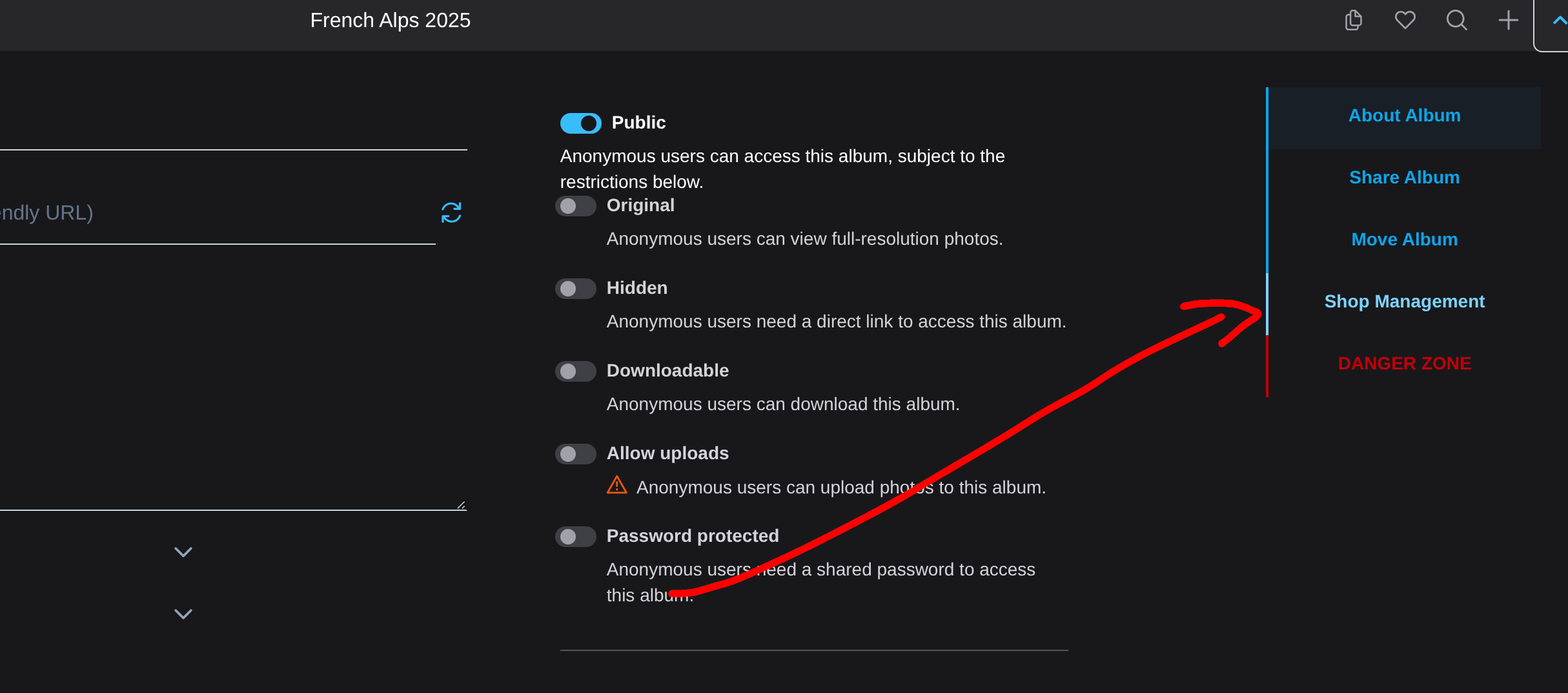
- Open the album menu (context menu).
- Select the webshop configuration option.
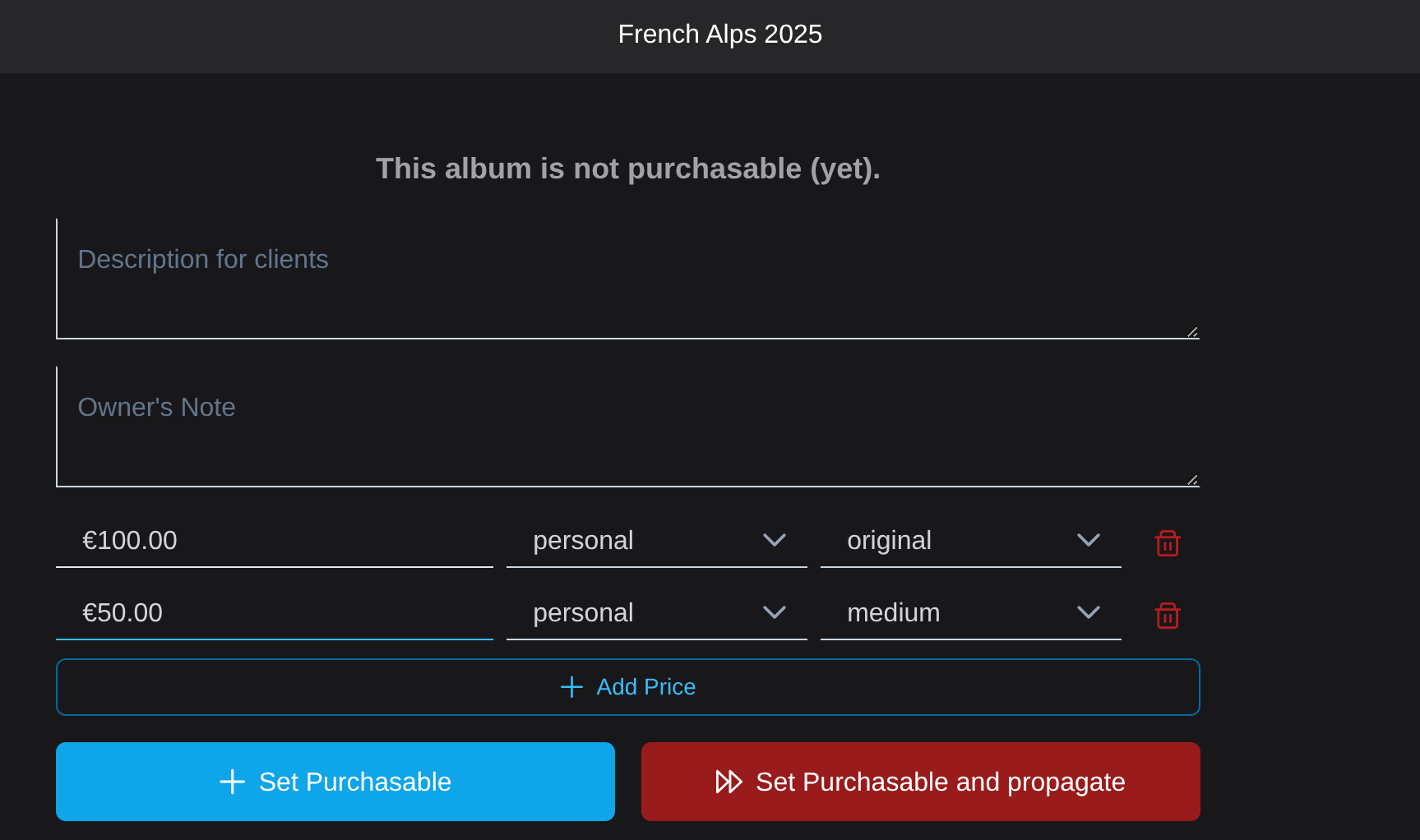
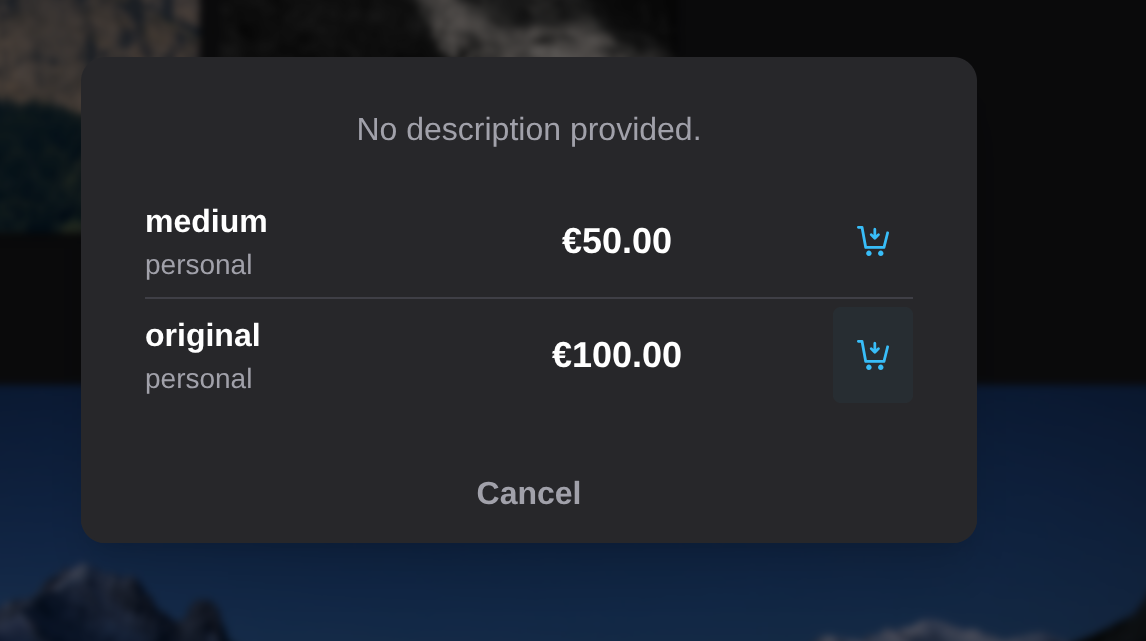
- Define the available sizes and their prices (e.g. Digital Small — €5, Original — €15).
How Visitors See It
Section titled “How Visitors See It”When the webshop is active on an album:
- A basket icon appears in the top-right corner of each photo thumbnail on hover.
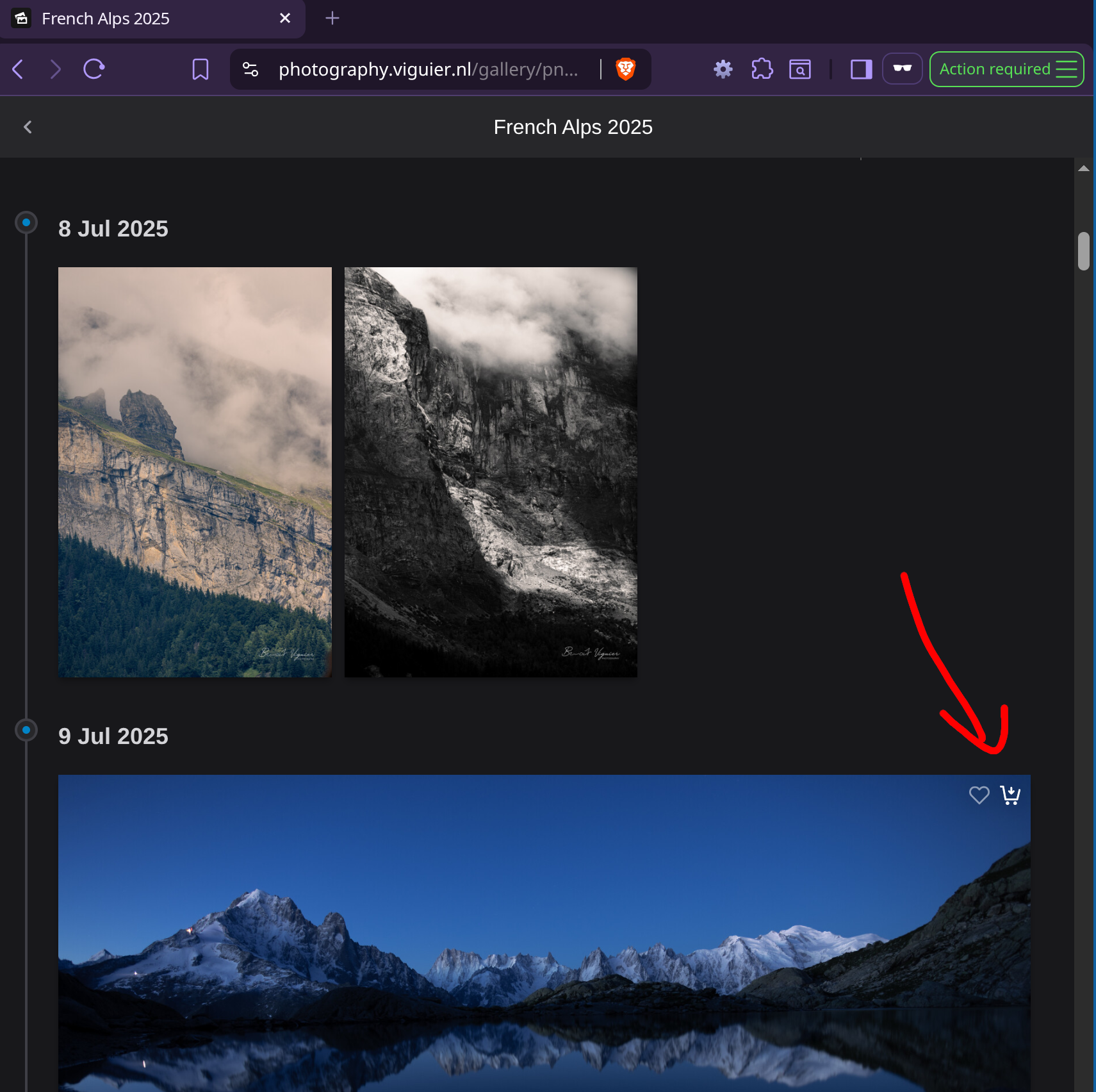
- Clicking the basket icon opens a size/price selector.
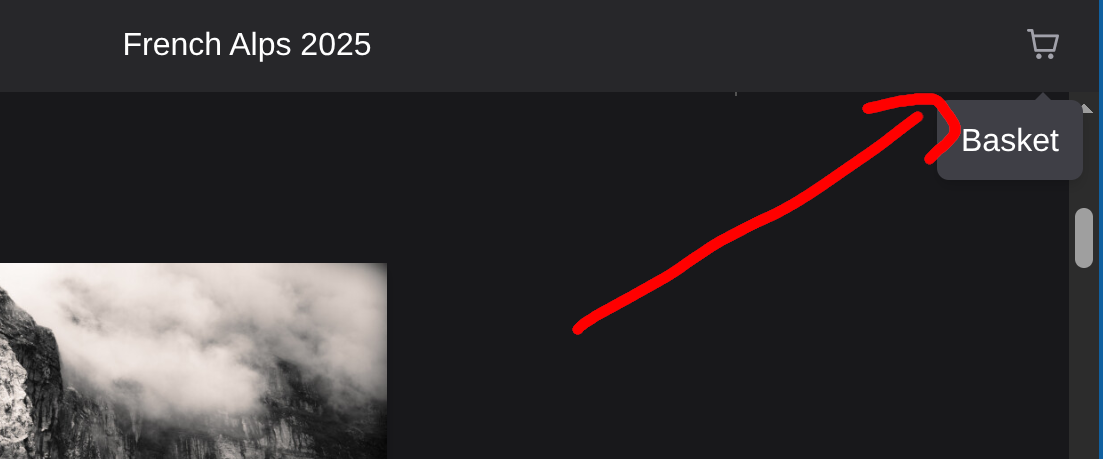
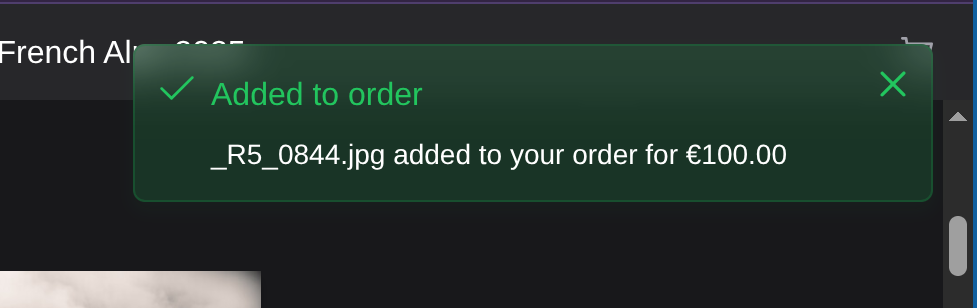
- Selected items are added to a shopping cart visible in the top-right corner of the page.
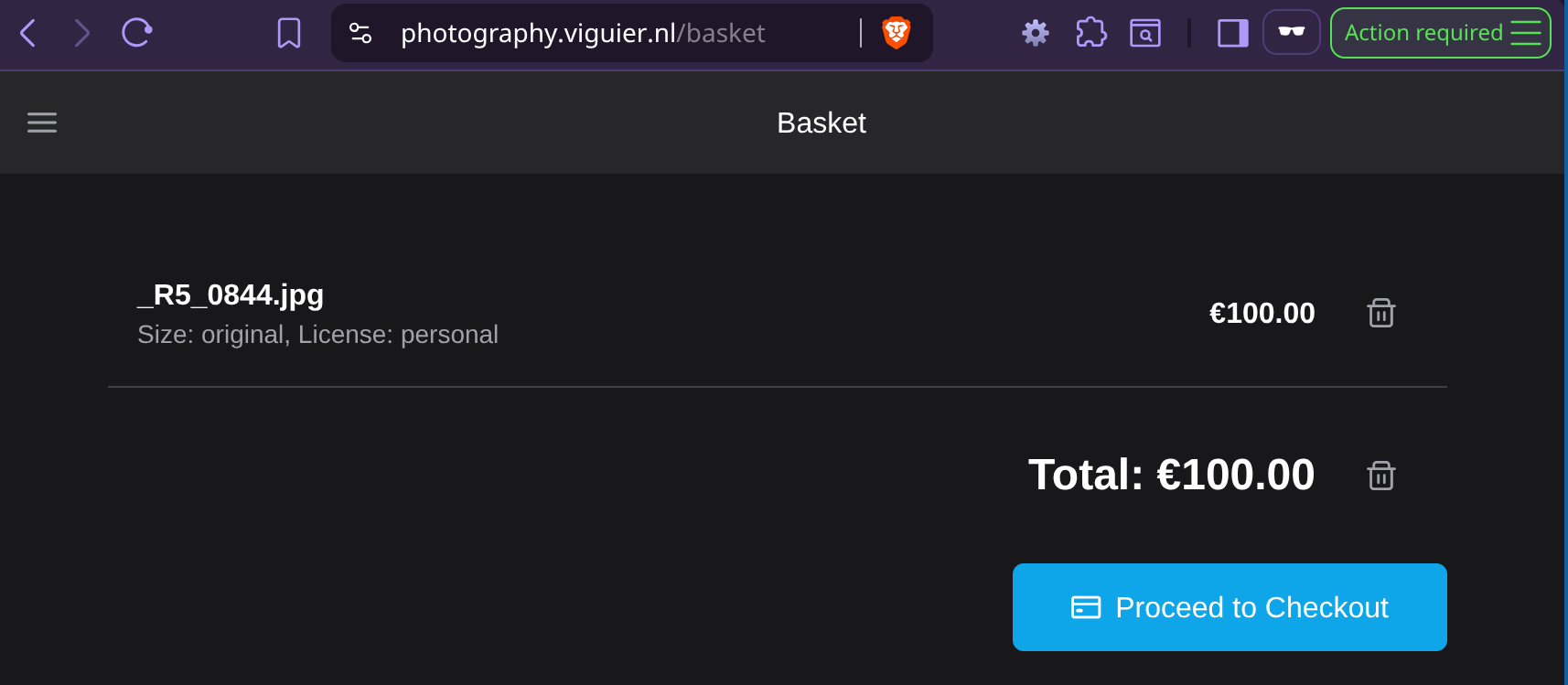
- From the cart, visitors proceed to checkout.
- After payment, the visitor sees a confirmation page.